miercuri, 7 septembrie 2016

Giveaway: PhotoStitcher 1.6 - panorama maker

PhotoStitcher 1.6
With PhotoStitcher you can stitch multiple photos into a picturesque panoramic image. The program smoothly combines photos of different resolutions, shooting angles and even different perspectives into one perfect panorama, imaging breath-taking landscapes, monumental churches or skyscraping mountains that are so hard to fit into one frame. PhotoStitcher is capable of stitching full view panoramas without any user input. It is a solution to stitch any panorama completely automatically, whether 1D (horizontal OR vertical) or 2D (horizontal AND vertical).

Download link available today:  https://www.giveawayoftheday.com/photostitcher-1-6-2/

Tutorials: https://www.photostitcher.com/tutorials.html

Free Alternatives:


Hugin tutorial: Stitching two photos together


The entire process described here, of taking two handheld photographs and sticking them together into a single image, can be performed completely automatically by just clicking Align in the Hugin Assistant tab. This tutorial looks 'under the hood' of Hugin and introduces some of the concepts and functions that are needed for more advanced use.

Start by launching Hugin, and using the Images tab select Add individual images... button to select the two images you want to stitch.

Tip: you can select multiple images in the file dialog box or drag and drop files from a suitable file browser.


Select image #0 then click on Anchor this image for position and Anchor this image for exposure. You might want to try this tutorial again later selecting image #1 to see what difference these choices make.

If you select or drag in image files which don't have complete EXIF data, the Camera and Lens data dialog box will open asking for camera and lens data. For a normal pocket camera it is usually safe to enter 50 deg for the HFOV(Horizontal Field of View).

Switch to the Control points tab, this is where you are going to input all the information the software needs to align the two images.


Click on the title bar above each image to select image 0 on the left hand side and image 1 on the right hand side.

Make sure that Zoom is set to fit to window and that both Auto fine tune and Auto add are set.

Now you can use the mouse to select control points; pick well defined features that you can see in both the left and right-hand window.

Hugin aligns images using these control points, each is actually a pair of locations, one for each of the two images being connected.

When you first select a point a high magnification window will open to help you with selection. If you hold down your left mouse button you can roam around until you have the cross hairs just where you want them.

For the first control point you will then need to go to the other image and click the corresponding location, Hugin will then automatically fine-tune this position. For subsequent points, when you have finalised your selection on the first image Hugin will automatically find the point in the second image.

Repeat until you have about 5 or 6 pairs of control points.


Now select the Optimizer tab. Hugin uses an optimisation scheme where it adjusts image orientation and lens settings of source photos until the control-points line-up.

The plan here is to keep the first image fixed and adjust the position of the second image to fit. You can do this by selecting Optimize Positions (incremental, starting from anchor).

However the lens parameters can be optimised at the same time; for now optimise HFOV (horizontal field of view) and correct barrel distortion by selecting Optimize Positions, View and Barrel (y,p,r,v,b).

Tip: Although you can optimise all hfov, a, b, c, d & e parameters, most of the time the hfov and b parameters are the only significant lens numbers you need to consider.


Click on the Optimize now! button and wait while the optimiser tries to find a good fit. When it is done you will need to Apply the changes.


Select the Exposure tab. Choose Low dynamic range and click Optimize now! You might want to try this again with a different optimisation setting to see the effect.


Before we generate the stiched panorama, select Preview panorama icon (or find it in the View menu).


In this window we need to set the projection to Rectilinear, this is equivalent to a normal wide angle camera.


The Straighten icon can be used to automatically centre, level and fit the field of view to the images. You can alternatively do this manually by adjusting the sliders at the edges and by clicking in the preview itself to re-centre the view.

Finally we are going to generate the output image. Select the Stitcher tab.


The projection should be Rectilinear, and having adjusted the field of view in the preview window these settings should not need to be altered. Select Blended panorama under Normal output, and under File formats - Normal outputchoose whatever suits you. Here we have chosen JPEG. Select Save project and stitch. Firstly, project files will be saved to your selected location (these can be opened again later in Hugin to revisit the process) and finally you will be asked for a filename prefix for the final panorama.

marți, 6 septembrie 2016

Giveaway: AOMEI Partition Assistant Pro 6

AOMEI Partition Assistant Pro
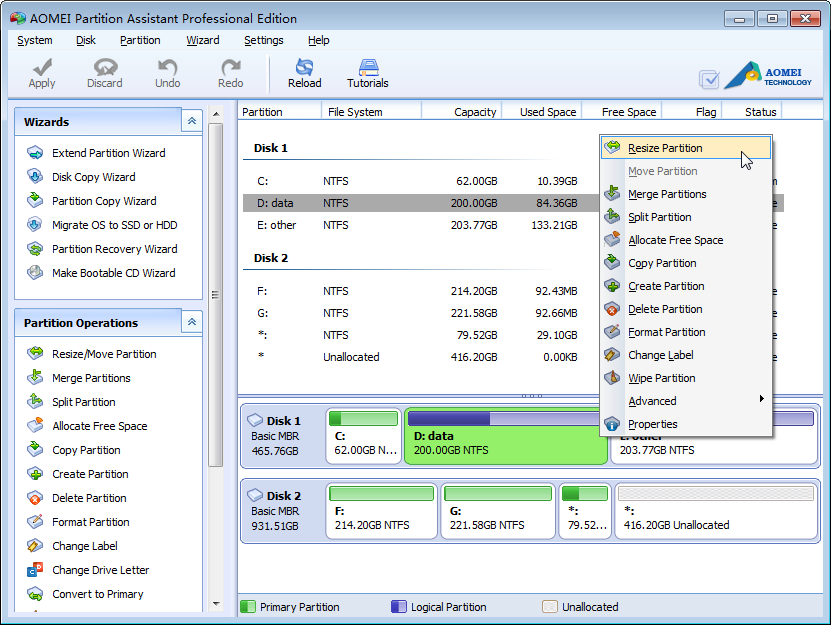
AOMEI Partition Assistant Pro is a complete, simple, and reliable partition software and disk manager for Windows PCs and laptops. It brings a set of powerful tools to maximize disk space use and improve overall performance of your computer.
 Key features:
  • Change Partition Size: extend, shrink, merge, split partitions, and allocate free space from one partition to another; 
  • Easy Wizards: Extend Partition Wizard, Partition Copy Wizard, Disk Copy Wizard, and Partition Recovery Wizard; 
  • System Migration: migrate your OS from an old HDD to a new SSD or HDD, supporting MBR and GPT disks; 
  • Safe Converters: convert MBR to GPT disk, convert dynamic disk to basic, convert NTFS to FAT32, and convert primary to logical partition; 
  • Windows To Go Creator: build a portable and fully functional Windows 8/8.1 system on a USB flash drive; 
  • Make Bootable Disc: create a Windows PE bootable CD/DVD or USB flash drive without installing Windows AIK.
AOMEI Partition Assistant Pro


Free alternatives:
Boot disk (rescue disk) free alternatives:

luni, 5 septembrie 2016

Giveaway: Zemana AntiMalware Premium

Zemana AntiMalware Premium
Zemana AntiMalware serves double-duty; cleans up your PC in a matter of minutes, as well as blocking threats–not just viruses, but also malware, trojans, root-kits, ransomware, boot-kits and zero day malware in real time. Besides it improves your online experience by removing all the annoying pop-ups and unwanted toolbars from your browser, the kind that often come preloaded with upgrades or downloads. Zemana AntiMalware uses Pandora Real Time Sandbox Technology to detect and eliminate threats, which leaves zero-day malware powerless.

Download link available today:  https://www.giveawayoftheday.com/zemana-antimalware/

Antivirus free alternatives:

Antimalware free alternative: Malwarebytes antimalware
MalwareBytes Download.com review****: http://download.cnet.com/Malwarebytes-Anti-Malware-Free/3000-8022_4-10804572.html

AVtest comparison: https://www.av-test.org/en/antivirus/

Windows tune up free alternatives - system tools:  

Win one of the 50 licenses for MagicScore Guitar 8

MagicScore Guitar 8
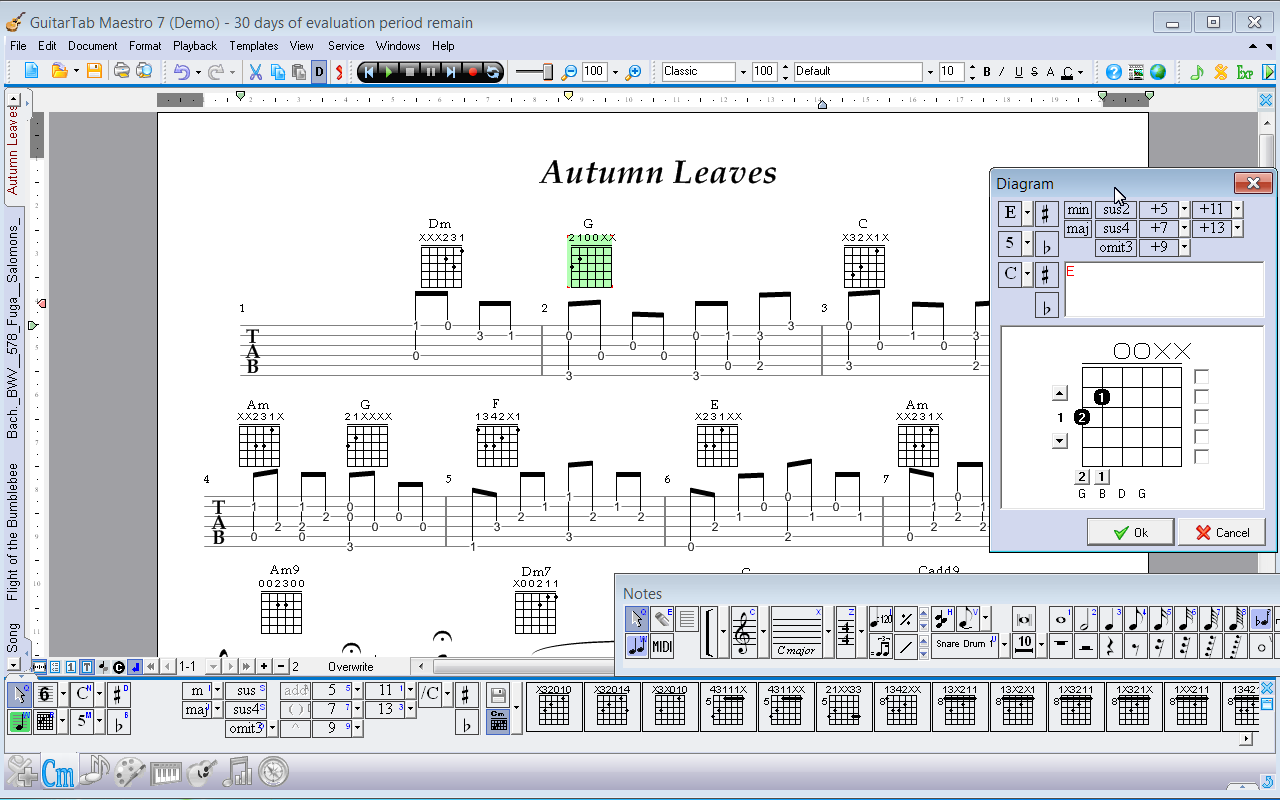
Play and compose guitar music with ease! Whether you are seasoned professional, music teacher or just a learning beginner, MagicScore Guitar will bring the full power of a highly sophisticated tab editing and music notation software right to your fingertips.
MagicScore Guitar 8 offers everything you need as a guitar player. This powerful and user-friendly solution allows you to quickly compose songs by laying them out along with tabs and notes. You can use it for creating arrangements or for advancing to the next level of your performance skills. There are built-in features for helping you share your tabs and notes, training tools allowing you to practice a song, as well as teaching tools to help newbies learn how to play the guitar. MagicScore Guitar is extremely versatile and easy to use, providing the full range of features that amateur and professional guitar players alike can put to good use.
In a comparison of MagicScore Guitar with Guitar Pro, the vast majority of guitarists, exceeding 80%, showed preference for MagicScore Guitar!

Link: https://www.giveawayoftheday.com/magicscore-guitar-8/

Free alternatives:

sâmbătă, 3 septembrie 2016

Giveaway: AV Audio Editor 7

AV Audio Editor 7
AV Audio Editor is full-featured digital audio editing software that offers a variety of audio recording, mixing, editing, analyzing and effects processing possibilities. It provides an intuitive, easy-to-use interface and is designed for the everyday user. It has dozens of amazing audio effects and tools for converting audio files into different formats, including MP3, WMA, WAV, Ogg Vorbis and many others. If you're using audio for anything - websites, PowerPoint presentations, Flash animations, AV Audio Editor will take your creations to the next level.

Download link available today:  https://www.giveawayoftheday.com/avaudioeditor-7-5-1/

Free alternatives: 

  • Ardour - OS - Windows, Linux, MacOS 
Ardour

vineri, 2 septembrie 2016

Giveaway: Cyberlink YouCam 6 - the only webcam software you’ll ever need

Cyberlink YouCam 6 - the only webcam software you’ll ever need
CyberLink YouCam6 is the ultimate webcam software, providing you all the tools and features you need to get the most out of your webcam. Whether you’re looking for fun features and effects you can use when chatting with friends, or powerful utilities to enhance your work presentations, tutorials or video conferencing, YouCam has it all. For work, play and everything in between, YouCam is the only webcam software you’ll ever need. The fun never ends with CyberLink YouCam6 – the most exciting all-in-one webcam and camera app for your lifestyle. Designed to work with your PC camera, you can take photo and video creativity to new heights with playful video effects while chatting or recording video. Or transform your tablet PC into a professional-style camera by capturing HDR and panorama photos. Even create your own sophisticated business video presentations.

Download link available today: https://www.giveawayoftheday.com/cyberlink-youcam-6-standard/#

Free alternative: CyberLink YouCam - Free Essential Version

YouCam in Action

  • Catching a Cookie Thief
  • Connecting Families
  • Face Login
     

Fun image enhancements and webcam tools to keep you connected

Watch YouCam 7 Intro Video
YouCam 7 Trial Download
CyberLink YouCam 7 delivers the functionality of a complete live video studio, to take full advantage of your webcam. It comes with face beautifier tools, over 200 fun effects for video chats and recordings, and a full set of capture tools.  Additionally, it offers simple-to-use and efficient security tools, such as surveillance and face login. Transform your virtual presence with YouCam 7.

More Webcam Fun - Personalize chats with unique effects


Keep the Fun Going

Real Time Video Effects
Choose from over 200 fun and interesting effects that can be applied to your video chats and video recording projects, with thousands more available for download on DirectorZone. Check out these sample avatar effects.

Make it Fancy

Frames and Scenes
Both frames and scenes let you blend the image from your webcam with another image effect. Use them to spice up your video and compose the perfect portrait or an ultra cool profile picture. See examples of frames and scenes.


Make it Lively

Particles, Filters, & Distortions
The many entertaining effects available in YouCam include colorful interactive particles, as well as many funhouse-like filter and distortion effects. Redefine your universe with particles filters and distortions.

Express Yourself

Emoticons & Gadgets
Choose face-tracking accessories that move when you do, and communicate how you really feel with hilarious animated emoticons. Emoticons can also be paired with other effects to double the fun! See examples.

Cooler Pictures and Videos

Enhancement tools let you look your best


Get Creative

Photo Editing Workspace
Enhance your webcam photos using a range of brush sizes and colors, or try freestyle drawing using your fingers on the touch-screen. Photo presets let you easily and quickly adjust the mood and artistic feel of your pictures. Rotate and crop webcam photos to extract the best parts for sharing.

Perfect Profile Pics NEW

Face Beautification Tools
When you are editing your webcam pictures, YouCam’s facial recognition technology and suite of beautifying tools allow you to touch up your facial features, removing imperfections and making subtle enhancements.


Adjust Lighting

Smart Video Enhancements
CyberLink’s proprietary TrueTheater™ technology automatically adjusts lighting and sharpness. You can also take full control by manually adjusting noise reduction, contrast, and brightness.

Look Your Best NEW

Skin Smoothener
Don’t let bad lighting make you look older. When recording video or webcam chatting, the real time skin smoothener reduces visible blemishes and wrinkles from your face.

Improved Productivity

Create professional presentation videos


Save the Action ENHANCED

Desktop Recording in Full HD & Higher FPS
YouCam's desktop recording feature delivers better performance and higher frame rate video than ever before. You can capture the area around the mouse pointer, select a specific region to capture, or capture the desktop full screen.

Get to the Point

PowerPoint Video Presentations
YouCam lets you integrate an existing PowerPoint file into a video chat or recording session. Choose from a variety of screen layouts, and freely draw on the presentation slide when you need to highlight key messages.

Simple Safety Tools

Stay in charge of your PC and its surroundings


Stay on Watch

Surveillance Mode
With YouCam's motion detection technology, your webcam and PC function as home security system. You can also set up time-lapse recording, and YouCam will take a snapshot at the time interval set by you.

Manage PC Access

Face Login and Face-out
Your face is the most reliable password. Face Login will remember your passwords, and log you into Windows when you present your face in front of the webcam. Face Login also works to access most popular websites. For added security, YouCam can lock the PC screen when your face is not in front the webcam.

joi, 1 septembrie 2016

Giveaway: Сrazy Talk Animator Standard 1

CrazyTalk Animator
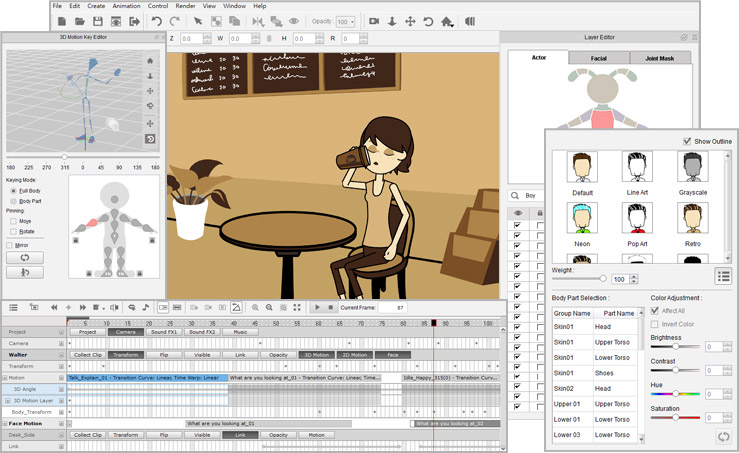
CrazyTalk Animator is a revolutionary animation suite with all the necessary tools to easily create pro-level animation. CrazyTalk Animator's stage is a 3D layered 2D studio where you can drag and drop actors, props, scenery and images or video directly to the stage for scene setup. Create actors from any photo or illustration and CrazyTalk Animator's innovative Actor Creator wizard. Bring actors to life with automatic facial animation and innovative puppeteering motion. Drag-and-drop to build sets with scenery and props. Film and direct all the action with camera and time-line tracks for complete 2D.

Download link available today:  https://www.giveawayoftheday.com/razy-talk-animator-standard-1/

Crazy Talk Animator review: http://www.3dtotal.com/interview/262-crazytalk-animator-2-review-by-jahirul-amin


Free alternatives: